
New here? Start with who I am now, then come back.
Last week I deleted a document I never should have made.
A few days into this series, I typed my Social Security number and my passport number into a document on my computer so I’d have them handy. I mentioned it once. Last week I finally deleted it, and I felt good about that.
Then a quieter question showed up. If I’d done it once without thinking, where else had I done it? And how would I even find out?
What
Here’s the thing about me and security: I take it seriously. I use a VPN. I don’t click links I’m not sure about. I know what phishing looks like. I don’t accept friend requests from people I don’t know, and I’m wary of ads.
Every one of those habits faces outward. They guard the front door.
What I’d never done was turn around and look inside my own house. My computer is where I save everything. So when I needed a number, I put it wherever I was working. I never thought of that as a security question. It was just my computer.
So this week I went looking. I used the search box on my Mac and the search bar in Photos, and typed words like passport, Social Security, SSN, account number, and password.
My files were the smaller surprise. There weren’t many hits, but there were old spreadsheets with lists of accounts and financial information I’d made years ago and forgotten. I deleted a lot of them.
Photos was the big one.
When I create a new password, I save it in my password manager. Then, to check that it saved correctly, I take a screenshot. The checking part is sensible. What I never did was delete the screenshot afterward.
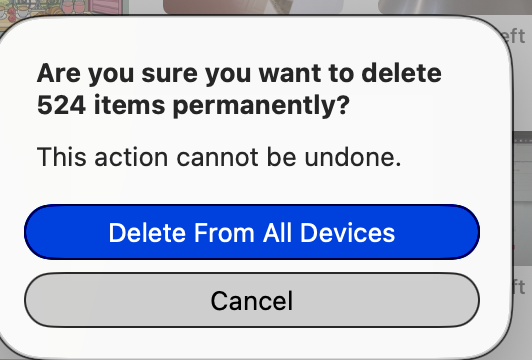
I deleted more than 520 of them.
Five hundred and twenty-four pictures of passwords and outdated screenshots no longer needed, sitting in my photo library right alongside every other picture I’ve taken.
So what
Our parents didn’t face this, and not because they were more careful. Their numbers lived with custodians. The bank kept the account numbers. The Social Security card sat in a drawer with the passport. Nobody had a copy on a phone, because there was no phone to put it on.
Now we are our own custodians. And our tools make copying effortless: a screenshot, a quick note, a spreadsheet “just for now.” Each copy feels like being organized. And really, every copy is one more window left open in a house we thought was locked.
For five weeks this series has been about making things findable for the person who will act for us. This week is the other half of the same job: making sure the wrong things aren’t findable.
The map says where things are. It never holds the numbers. The numbers belong in one locked place and nowhere else.
That isn’t a failing. We’re the first generation with photo libraries full of screenshots, and nobody taught us to clean up after them. We’re not behind. We’re first.
What if
So here’s this week’s step: one 20-minute search.
- Search your computer. On a Mac, press Cmd + Space. On a PC, use the search box in File Explorer. Try these one at a time: passport, Social Security, SSN, Medicare, account number, routing, PIN, password, date of birth.
- Use the best trick. Type the last four digits of your Social Security number. That finds any file holding the real number, whatever the file is called.
- Search your photos. On a Mac or iPhone, the Photos search bar reads the words inside your pictures, screenshots included. Use the same words. Then scroll your Screenshots album. You’ll recognize a bank page or an ID card at a glance.
- Move it, don’t just delete it. If you still need the information, put it in your password manager or on paper in your one place. Then delete the copy.
- Empty the trash. Photos keeps deleted pictures in Recently Deleted for 30 days. Until you empty it, they’re still there.
And one new habit. When you need to check that a password saved correctly, open your password manager and look at it there. No screenshot needed.
A small warning: if Photos says it’s still “analyzing your library,” a search for SSN may come back empty for now. Search again in a few days.
Email is next for me. I’ll tell you what I find.
I know the image below looks scary, but it was actually freeing.
If you’d like the full list of what belongs in your one place, start with my free Vital Legal Papers Checklist. Get the free checklist →
The Vital Papers Kit goes one step further. It never asks for a password, a PIN, or an account number, only where things are kept. And it has a page that teaches you to apply the same rule to everything else on your computer. Get the Vital Papers Kit, $27 →
We’re not behind. We’re first.